Send a client to AgencyZoom with Quick Send
Send a client to AgencyZoom before the full RiskProfile is complete.
Written By David Brower
Last updated About 3 hours ago
Use Quick Send to put a client in AgencyZoom before you finish the full RiskProfile.
Before you begin
An Account Owner or Admin must turn on Quick Send.
Your team must have a Pipeline and Pipeline Stage set.
Every user must be matched on the Users Mapping tab. This applies to single and multiple pipelines.
Turn on Quick Send
Go to Integrations → AgencyZoom.
Check that Pipeline and Pipeline Stage are set.
Match any unmatched users on the Users Mapping tab.
Check Enable Quick Send.
Click Save.
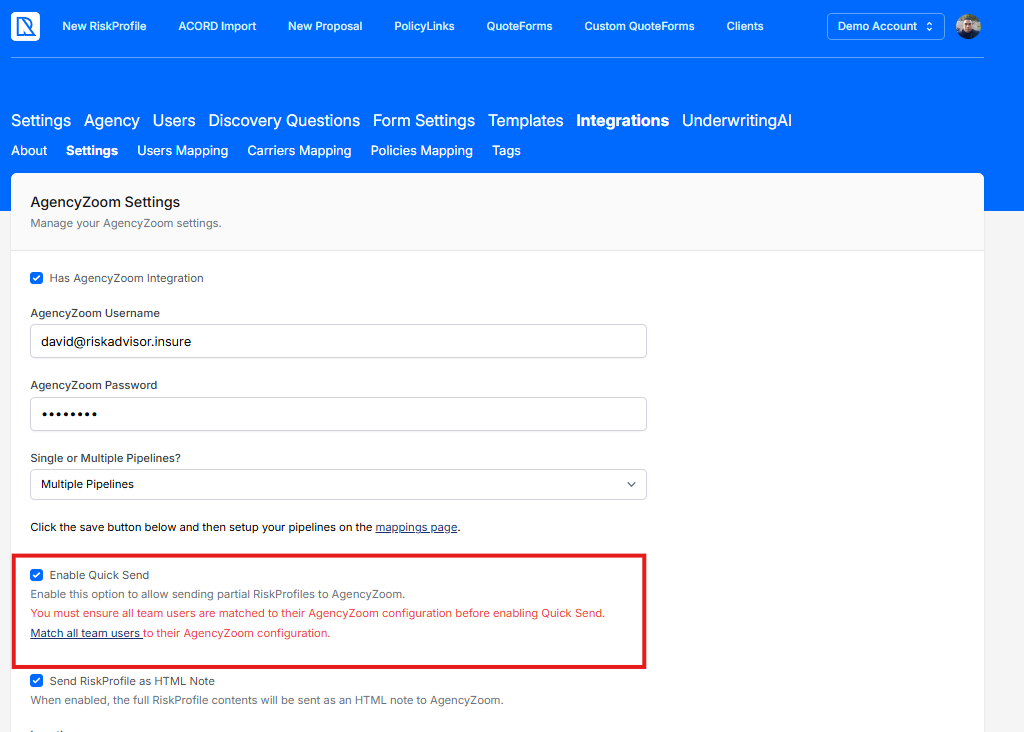
Note: Enable Quick Send stays locked until steps 2 and 3 are done.
Send a client
Start a new RiskProfile.
Fill in the required fields listed below.
Click Quick Send.
Review Pipeline, Stage, and Location in the window that opens.
Confirm the send.
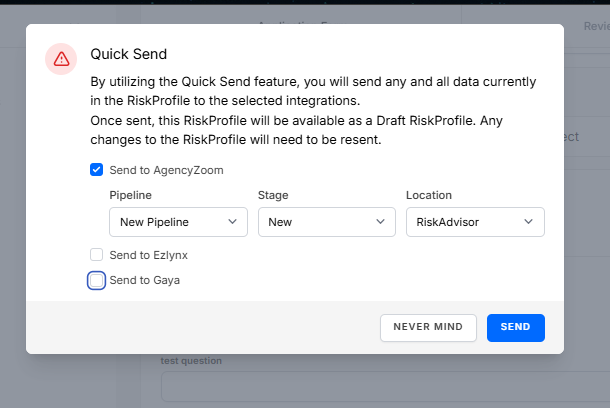
Each dropdown starts on Use Default [needs verification]. Leave it there to use your team or user defaults.
A banner at the top of the page confirms the client is in AgencyZoom.
Required fields
A producer or return quotes to with an AgencyZoom username
Client first name
Client email
AgencyZoom Lead Source
Tip: Hover over the disabled Quick Send button to see which fields are still missing.
FAQs
Why can't I turn on Quick Send?
Why can't I turn on Quick Send?
Your team is missing a Pipeline or Pipeline Stage, or at least one user is not matched on Users Mapping.
Does Quick Send work with multiple pipelines?
Does Quick Send work with multiple pipelines?
Yes, once every user is matched. You can also pick a pipeline in the Quick Send window.
Related Articles
Was this helpful?
Still need help? Ask the team