Set up HawkSoft Document
Send a completed RiskProfile into HawkSoft as a downloadable document that imports your client and policy data, including full rating fields. This guide is for agency staff setting up and using the HawkSoft Document path.
Written By David Watson
Last updated 11 minutes ago
The HawkSoft Document carries full rating detail, but you download it and import it through HawkSoft Desktop. If you want a one-click push with no download, set up HawkSoft Direct Create instead, or use both together.
Before you start
A RiskAdvisor Growth or Premium plan
HawkSoft 6 Desktop installed (see the FAQ)
Admin access to Integration settings
A completed RiskProfile with a first name, last name, and an email or phone number
Step 1: Turn on the HawkSoft Document
You can receive the document by email, download it on demand, or both.
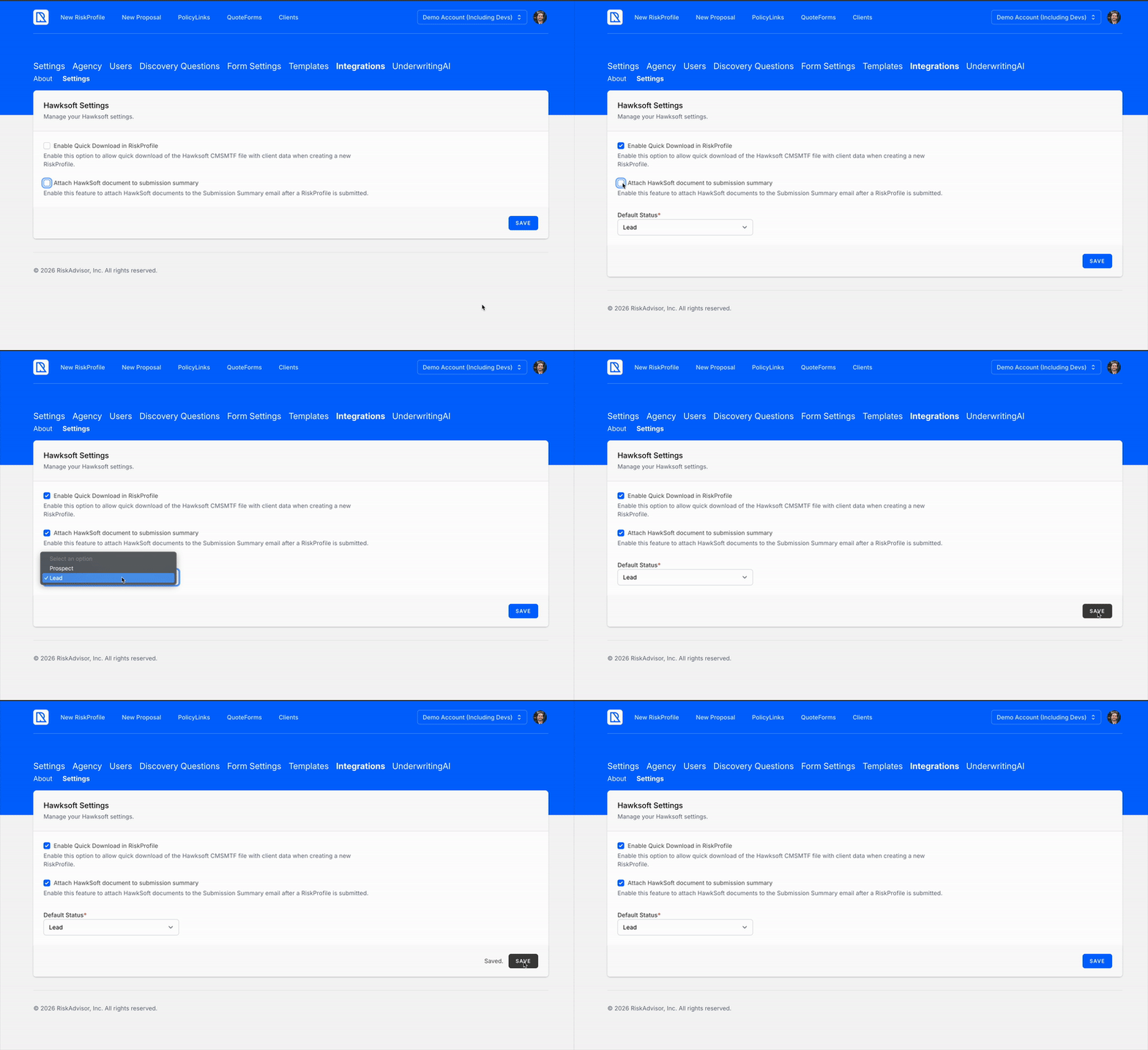
Go to Settings > Integrations > HawkSoft.
To get the document by email, check Attach HawkSoft document to submission summary.
To download it on demand from a RiskProfile, check Enable Quick Download in RiskProfile.
Choose Lead or Prospect as the default status.
Click Save.
Step 2: Get the HawkSoft Document
Once the integration is on, RiskAdvisor creates a HawkSoft Document any time a Home or Auto RiskProfile is completed. You get a separate document for Home and for Auto.
You can get the document two ways:
Submission Summary email. RiskAdvisor emails the document to the Return To User listed on the Review & Send page. The file has a
.CMSMTFextension. It is safe to open.Quick Download. Open the RiskProfile and click Quick Download for HawkSoft to download the file directly.

Step 3: Import the document into HawkSoft
Open the
.CMSMTFfile. For HawkSoft Desktop users, this opens HawkSoft automatically.In the Insert Policy window, review the client data and add any missing information.
Click Finish.
Repeat for each document. If you have separate Home and Auto files, choose existing customer on the second import so you do not create a duplicate.
Tip: Do not right-click to open the file. Let it open on its own, or drag one file at a time into HawkSoft. Right-clicking makes the import harder.
FAQs
What is the difference between the HawkSoft Document and Direct Create?
What is the difference between the HawkSoft Document and Direct Create?
The HawkSoft Document carries full rating fields but you download and import it through HawkSoft Desktop. Direct Create sends client and basic policy data in one click with no download, but it does not carry full rating fields. Use both if you want the speed of Direct Create and the rating detail of the Document.
Do I need HawkSoft Desktop?
Do I need HawkSoft Desktop?
Yes. The HawkSoft Document opens and imports through HawkSoft Desktop. See the install steps below.
How do I install HawkSoft 6 Desktop?
How do I install HawkSoft 6 Desktop?
Open the Setup menu in HawkSoft, select Install Desktop App, save the file to your workstation, run it, and sign in as you normally do. Choose Create Shortcut on Desktop and Launch HawkSoft when Finished.
My files will not download in Chrome. What do I do?
My files will not download in Chrome. What do I do?
Chrome blocks multiple downloads from the same site by default. Go to chrome://settings/content/automaticDownloads, turn on Sites can ask to automatically download multiple files, and click Allow the next time you are prompted.
Related Articles
Was this helpful?
Still need help? Ask the team