Upload Carrier Docs to UnderwritingAI
Written By David Watson
Last updated 12 months ago
Overview
UnderwritingAI lets you upload underwriting documents by carrier and extract rules into the Risk Profile. Once documents are processed, rules automatically enhance your risk reviews on the Review & Send page.
This guide walks you through:
Enabling UnderwritingAI
Uploading docs by carrier, state, and product
Managing document statuses
Beta troubleshooting
How To Do It 🚀
Turn On UnderwritingAI
Go to Settings ⚙️
Click the new UnderwritingAI ✨ tab.
Check Show UnderwritingAI indicators on the Risk Profile (Review & Send page).
Click Save Settings.
Add a Carrier
In the UnderwritingAI settings page, scroll to Carriers.
Click Create a New Carrier.
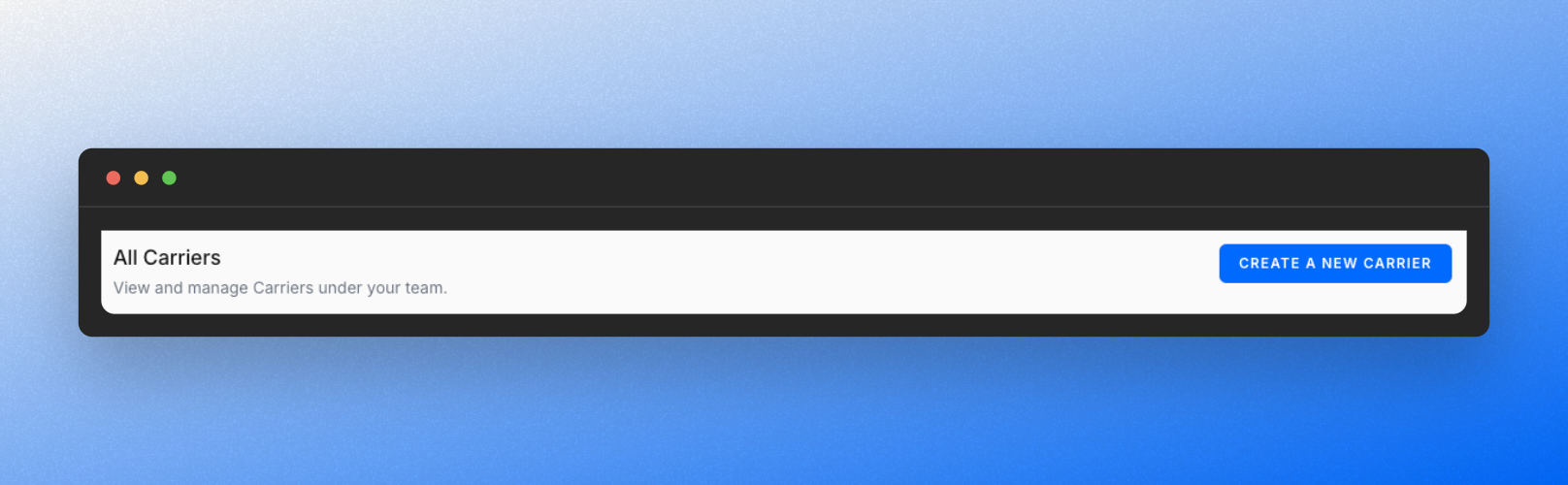
Name the carrier
Click Create.
✍🏻 You can rename carriers later if needed.
Add Product Availability + Upload Docs
Click the carrier name to enter its profile.
Go to the Product Availability section.
Click Add Carrier Document.
Fill out:
Product Category (e.g., Home, Auto, Umbrella)
State (e.g., South Carolina)
Drag-and-drop or upload your PDF underwriting documents.
🗂️ You can upload multiple documents per product per state.
e.g., Quick Reference Guideline and Full Manaual

What Happens After Upload?
Processing can take up to ~20–30 minutes.
A Ready status means rule extraction is complete.
You'll see the extracted rules in the Risk Profile under the Review & Send page.
Beta Participants
UnderwritingAI is in Beta. You might see some documents get stuck in Processing.
If that happens:
Click into the carrier (e.g., Heritage).
Look for documents marked Completed but not Ready.
Click Retry Rules to reprocess.
If it still doesn’t work:
Wait 10–30 minutes.
If it remains stuck, chat with Support or email david@riskadvisor.insure.