InsuredMine Integration
Learn to integrate RiskAdvisor with InsuredMine and the key features.
Written By David Watson
Last updated 3 months ago
Overview
The RiskAdvisor ↔ InsuredMine integration enables you to automatically send RiskProfiles from RiskAdvisor into your InsuredMine pipeline. This will create deals, contacts, and accounts without duplicate data entry or dropped leads.
Use this guide to:
Activate the integration with your link
Configure lead sources
Map RiskAdvisor data to InsuredMine pipeline cards
Send RiskProfiles directly into your InsuredMine workflows
Current limitation: Pipeline cards can only be assigned to one team member per automation rule. If your team has multiple producers, you can create separate rules per producer.
Setting up the InsuredMine Integration (Interactive)
Setting up the InsuredMine Integration (Steps)
1. Activate the InsuredMine Integration
In RiskAdvisor, click your Account Name → Settings → Integrations.
Find the new InsuredMine integration card.
Click the [ ] Has InsuredMine Integration
Enter your InsuredMine subdomain — this should look like
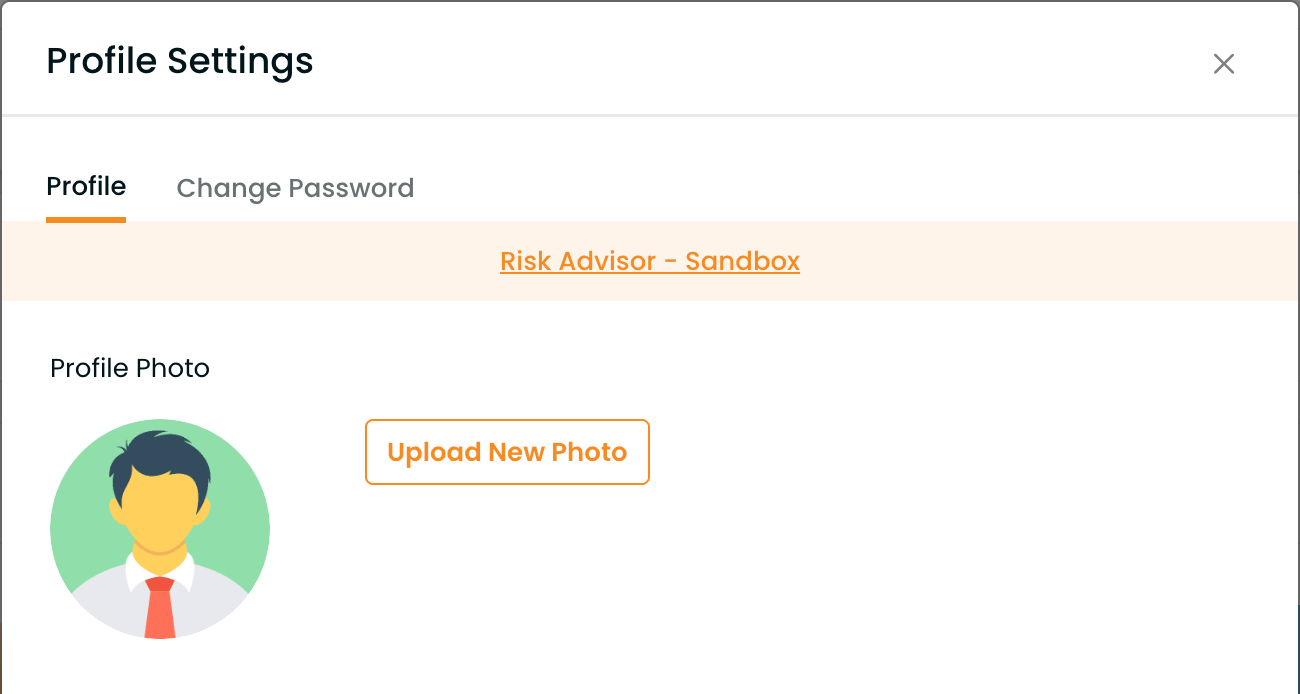
youragency.insuredmine.com.Enter your IinsuredMine Agency Name. You can find this under InsuredMine - Profile Settings as shown below:
Click Save.
✅ Tip: Once this has been saved we will send the request to InsuredMine to verify the connection. This should happen instanteous.
2. Add and Manage Lead Sources
You can create standardized lead sources that appear as a searchable dropdown in RiskProfiles.
To add or edit lead sources:
Go to Settings → Integrations → InsuredMine.
In the Lead Sources section, type a new source (e.g., “Newspaper”).
After each Lead Source Press Enter.
Once you have added all of your Lead Source click Save.
This lead source now appears in the RiskProfile Lead Source dropdown when creating or editing a profile.
✅ Pro Tip: Keep names consistent with your InsuredMine Lead Sources to prevent duplicates being created.
3. Set Up Form Automation in InsuredMine
Once connected, configure how RiskAdvisor data flows into InsuredMine.
In InsuredMine, open the left-hand sidebar → Forms → Agent Forms.
Locate the RiskAdvisor form (automatically added).
Hover over the three dots (⋯) next to it and select Form Automation.
Click Create Pipeline → choose Yes.
Decide if the pipeline will be Private or Shared.
Select the Pipeline Board and Stage (e.g., “Lead In”).
Assign at least one Producer (InsuredMine currently does not auto-assign producers from RiskAdvisor).
Please let InsuredMine know that you would like this by upvoting this Feedback ticket: InsuredMine Request: Dynamically Map Pipeline, Stage and Agent with RiskProfile Submission
Leave Deal Category and Lead Source blank for now (RiskAdvisor sends those).
Choose Deal Type (e.g., Personal).
Select Contact Status (e.g., Lead or Prospect).
Optionally add a label such as
RiskAdvisor RiskProfile.
4. Map RiskAdvisor Fields to InsuredMine Fields
In the Form Automation mapping screen:
Deal Title: Map to Applicant Name (primary applicant).
Deal Description: You can enter text or select from RiskAdvisor fields.
Labels & Categories: Labels are not yet supported (coming soon).
Please let InsuredMine know that you would like this by upvoting this Feedback ticket: InsuredMine Request: Dynamically send multiple Deal Categories (eg., Home, Auto, Umbrella)
Contact Fields:
Full Name → Applicant Name
Street Address → Address
Add any additional mappings as needed.
At the bottom, check Do Not Pre-Duplicate to prevent duplicate records.
Client Address Fields
Unit/Suite No → Page 1 => Client Street Line 2
Street Address → Page 1 => Client Street
City → Page 1 => Client City
State → Page 1 => Client State
Zip Code → Page 1 => Client Zip
Click Save Automation when done.
5. Assign Producers Automatically with Label Automation (Workaround)
InsuredMine cannot yet auto-assign a producer from a RiskProfile submission. Until their API supports this, you can route each deal to the correct producer using a two-part label workaround: the agent tags themselves in RiskAdvisor, and a matching label automation in InsuredMine assigns the deal to that producer.
⚠️ Workaround, not a native feature: RiskAdvisor is not assigning the producer here — InsuredMine is, based on a label. Both halves below must be set up, and they must agree on the label, or deals will land unassigned.
How the workaround works
On Send to InsuredMine, the agent selects their name from the label dropdown in RiskAdvisor.
The deal arrives in InsuredMine carrying that label.
A label automation in InsuredMine matches the label and assigns the deal to the right producer.
How to Use the Integration
1. Send RiskProfiles to InsuredMine
Once setup is complete:
Open a RiskProfile in RiskAdvisor.
Complete all required fields.
On the Review & Send page, you’ll now see Send to InsuredMine as an option.
Click Save and Send.
The profile will be sent through your configured InsuredMine automation into the selected pipeline stage.
2. Set Your Personal Default for Send to InsuredMine
If your agency has the InsuredMine integration enabled, each user can choose whether Send to InsuredMine is turned on by default for newly created RiskProfiles.
In RiskAdvisor, open your Profile page.
Find the InsuredMine Preferences section.
Check or clear Default “Send to InsuredMine” to yes for newly created RiskProfiles.
Click Save.
Start a new RiskProfile and go to the Review & Send page.
Confirm the Send to InsuredMine option matches your saved preference.