Social Security Number Field
Written By David Watson
Last updated 11 months ago
Overview
You can now add and securely view Social Security Numbers (SSNs) for both the client and co-applicant directly in the Risk Profile and client record. The SSN is masked by default and requires re-authentication to view or edit. This ensures compliance and minimizes risk while giving your team access when needed.
SSNs are stored encrypted
How To Do It 🚀
Add SSN When Creating a Risk Profile
Go to the Client and click Create Risk Profile.
In the Risk Profile form, scroll to the SSN field under client or co-applicant.
Enter a valid 9-digit SSN (autoformatted).
Complete other required fields.
Click Save — the SSN is saved securely and will now appear masked in the profile.
View Full SSN from Client Detail Page
Go to the client’s profile.
Find the SSN field (you’ll see it masked: *--1234).
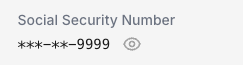
Click the 👁 eye icon.
Enter your password to verify.
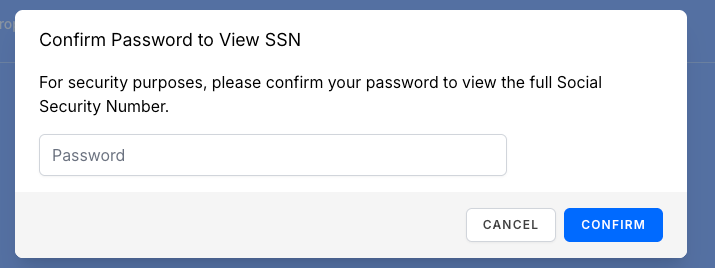
The full SSN will appear for 60 seconds, then auto-hide.
You can also click the eye again to hide it manually.
Edit an Existing SSN
Open the client’s Risk Profile.
Click the edit icon next to the SSN field.
Re-enter your password to unlock.
Update the SSN — it auto-saves in the background.
Even draft updates persist the new value securely.
SSN Behavior Notes
Validation: Only 9-digit valid SSNs are accepted.
Drafts: Edits to SSNs are saved as part of the draft Risk Profile.
Masking: SSNs are only unmasked after re-authentication and never persist to the front end.
Timeouts: Viewing/editing permission lasts 15 minutes per password entry.