Map your AgencyZoom users
Match RiskAdvisor users to AgencyZoom users and set each user's default pipeline, stage, and location.
Written By David Watson
Last updated About 2 hours ago
Match each RiskAdvisor user to an AgencyZoom user so leads go to the right person, pipeline, and office.
Note: Connect the integration first. See Set up the AgencyZoom integration.
Open the Users Mapping tab
Go to Integrations → AgencyZoom.
Click the Users Mapping tab.
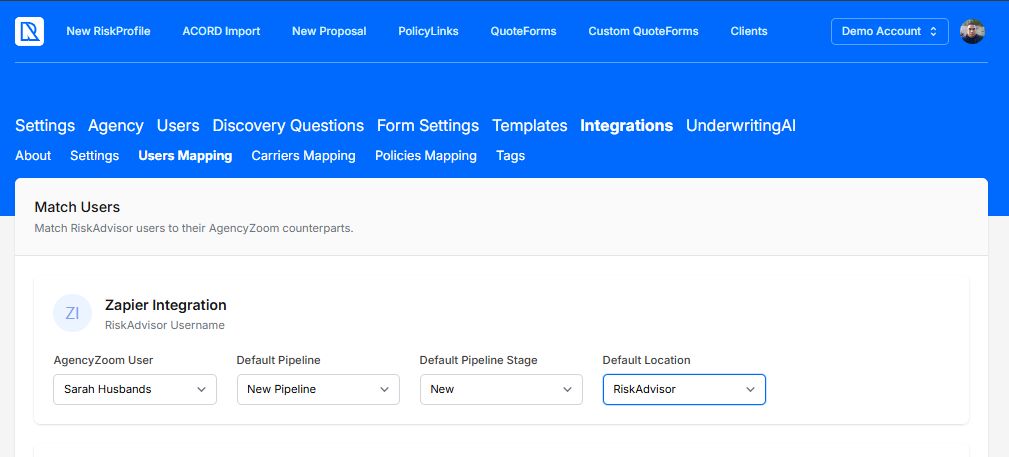
Map users for a single pipeline
If your team uses Single Pipeline, you only match users.
Find the RiskAdvisor user.
Select the matching AgencyZoom User [needs verification].
Click Save.
Map users for multiple pipelines
If your team uses Multiple Pipelines, set each user's defaults too.
AgencyZoom User
The AgencyZoom user assigned to own this person’s leads.
Default Pipeline
The pipeline where this user’s leads are routed.
Default Pipeline Stage
The stage where this user’s new leads begin.
Default Location
The AgencyZoom office where this user’s leads are assigned.
Click Save when every user is set.
How new team members are matched
When you add a team member, RiskAdvisor tries to match them automatically. It looks for the same name in AgencyZoom first, then the same email.
Check new team members on this tab. Fix any user who has no match or the wrong match.
Tip: Quick Send stays locked until every user is matched. See Send a client to AgencyZoom with Quick Send.
Related Articles
Was this helpful?
Still need help? Ask the team