Understanding Prefill Icons and Reference Values
Written By David Watson
Last updated 5 months ago
Every time a data prefill integration populates a field in a RiskProfile, RiskAdvisor marks that field visually so agents always know where the value came from — and can see the original value even after changing it.
What prefill indicators are
When an integration like Canopy Connect, Estated, Fenris, MeasureOne, or QuoteForms fills in a field, two visual elements can appear:
A prefill icon — a small, source-branded logo inside the input, visible while the field still holds the original prefilled value
A reference pill — a small colored badge that appears outside the input when an agent edits a prefilled field, preserving the original value for comparison
These are not notifications. They're passive, always-on indicators that live directly in the form and require no action from the agent.
The prefill icon
When a field has been prefilled and hasn't been edited yet, a small logo appears on the right side of the input box. The logo is source-specific:
Source | Icon appearance |
Canopy Connect | 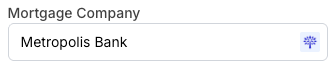 |
PolicyLink/MeasureOne | 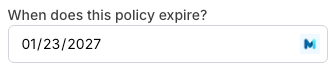 |
Estated (Property Data) | 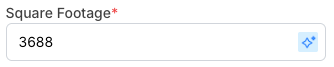 |
Fenris (Auto + DL Data) | 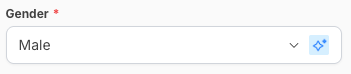 |
QuoteForms | 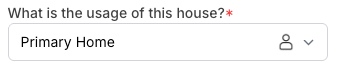 |
Hovering over the icon shows a tooltip identifying the source, such as:
"Prefilled from Canopy Connect"
"Prefilled from Property Data Prefill"
"Prefilled from MeasureOne"
"Prefilled from QuoteForm"
Reference fields (the reference pill)
When an agent edits a field that was previously prefilled, the original value doesn't disappear — it's preserved as a reference value and displayed as a small colored pill badge to the right of the input.
The reference pill shows:
The original prefilled value, formatted for readability
A mini version of the source logo
A background color matched to the source
Hovering over the pill shows a tooltip: "Reference data from [Source]."
This gives the agent a live comparison between what was originally prefilled and what they've entered, without losing the original. Reference pills are especially useful when reconciling differences between what a customer reported (via QuoteForms or MeasureOne) and what a third-party data source returned (Estated, Fenris, or Canopy Connect). If the values disagree, you can see both at a glance and decide which to use.
Visual states at a glance
Which integrations use this system
All six RiskAdvisor prefill sources participate in the same icon and reference value system:
Estated Property Data — fires automatically when a US property address is entered; uses the generic data-enrichment icon
Fenris Auto Data — fires automatically after name, DOB, and address are entered; uses the generic data-enrichment icon
Fenris DL Lookup — a follow-on to the auto pull; same icon as auto data
Canopy Connect — triggered manually by the agent searching and selecting a policy; uses the Canopy logo icon
MeasureOne — triggered by the customer completing an authorization via Policy Link; uses the MeasureOne logo icon
QuoteForms — triggered when an agent converts a QuoteForm submission into a RiskProfile; uses the person/user icon
The icons and pills behave the same way regardless of which source populated the field. The only difference is the logo and color used in the badge.
Related articles
How do data pulls work for my RiskAdvisor account?
Canopy Connect Integration
Centralized Credits for Data Pulls