UnderwritingAI Setup Guide (Beta)
Step by Step Instructions for our Beta Members
Written By David Brower
Last updated 5 months ago
How To Set Up UnderwritingAI 🧠
Open Beta Update: UnderwritingAI is now available to all Growth and Premium agencies. We're actively gathering feedback to improve features before a full release. You can opt-in by going to Settings → UnderwritingAI and checking the opt-in box.
Step 1: Opt-In to UnderwritingAI
Plan Requirement: UnderwritingAI is available on Growth and Premium plans only.
Go to Settings from the agency dropdown
Navigate to UnderwritingAI
Check the Opt-in box to enroll in UnderwritingAI Beta
To watch the user webinar recording, visit the Introduction to UnderwritingAI webinar.
Need help or have feedback? Use the in-app support chat or email us at support@riskadvisor.insure
Step 2: Upload Carrier Documents
Already covered in the Upload Carrier Docs to UnderwritingAI article. Once uploaded:
Go to Settings > UnderwritingAI
Click + Add Carrier Document
Select your carrier and line of business (Home, Auto, etc.)
Upload your carrier's underwriting guide (PDF format)
Document Tips:
PDF documents only
For documents over 50 pages, split them into 50-page sections and upload separately
You can upload multiple documents for one carrier (e.g., multiple Home guides)
If a carrier updates their guidelines, delete the old document and upload the new one
Wait time: ~5–15 minutes per document. If something breaks, RiskAdvisor will reach out.
Step 3: Review or Edit Extracted Rules
Before enabling indicators on RiskProfiles, review the extracted rules:
Check a few rules against your carrier's actual guidelines
Look for obvious errors (e.g., wrong property age ranges)
Note any missing rules from the document
To edit rules or build your own, check out our article Manually Creating and Editing Underwriting AI Rules
Found an issue?
Report via the beta Slack channel with carrier name and rule details
Or email support@riskadvisor.insure with screenshots
Our team will investigate and/or correct extractions within 24–48 hours
Step 4: Enable UnderwritingAI in Settings
Go to Settings from the agency dropdown.
Go to the UnderwritingAI Settings page.
Toggle "Show UnderwritingAI indicators on Risk Profiles" to ON.
You have the ability to do this for your team at any time. It is up to you to make the decision to turn this on. It is highly recommended to review the extracted rules before doing so.
Step 5: Use RiskProfiles with UnderwritingAI
To see UnderwritingAI indicators on RiskProfiles:
Open a RiskProfile for editing
Fill in questions (property details, drivers, vehicles, etc.)
Click Review & Send
View the Eligibility & Concerns section
Once enabled:
UnderwritingAI will flag eligible/ineligible carriers based on answers in the RiskProfile.
Indicators show during Review & Send based on the data that you input in the RiskProfile. The more thorough the data, the better results.
How UnderwritingAI handles hidden fields
UnderwritingAI only evaluates fields that are visible in the RiskProfile form. If your team has hidden a field through Custom Form Field settings — or if a field is hidden at the system level — that field is excluded from underwriting evaluation and won't trigger any indicators.
This means your eligibility results will always reflect what your team actually sees and collects, not background data that's been intentionally turned off.
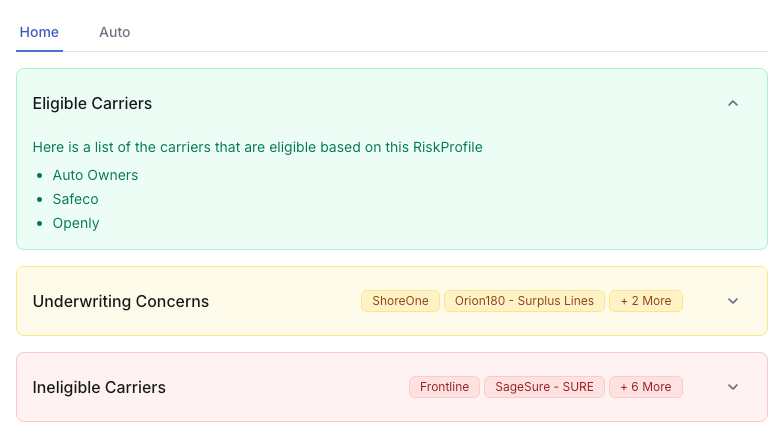
For Underwriting Concerns & Ineligible Carriers you will be able to click on the carrier’s name to view the specific concerns.

Report Rule Conflicts or Edge Cases
If something seems off (like a carrier showing eligible when it shouldn't):
Open the RiskProfile.
Review the answers triggering rules.
Report the issue via chat or Slack so the team can investigate and correct the extraction.
FAQs
Related Articles
Getting Help
For Beta Feedback & Questions: Join the beta Slack group (link in Step 1), use the in-app chat, or email support@riskadvisor.insure
For Bugs or Errors: Email support with screenshots and details. Include: (1) RiskProfile client name, (2) carrier name, (3) expected vs. actual result, (4) timestamp