EZLynx Integration
The EZLynx integration sends completed risk profile data from RiskAdvisor directly into EZLynx. Agents collect information once and it lands in EZLynx formatted for home and auto quoting — no re-keying required. The connection uses EZLynx's direct API, not Zapier.
Written By David Watson
Last updated 4 months ago
Plan Availability: Growth & Premium Plans
Integration Features
RiskAdvisor connects to EZLynx across three areas: pushing completed data, preventing duplicate records, and speeding up quoting before a full intake is done.
Direct API connection. No Zapier account required. Data moves through EZLynx's official API.
Full profile push. Completed RiskProfiles are pushed to EZLynx with home, auto, or both lines — agent's choice per profile.
QuickSend. Push minimal client details into EZLynx before a full RiskProfile is complete. Useful for starting a quote quickly.
Existing contact sync. Match a RiskAdvisor client to an existing EZLynx record to avoid creating duplicates.
Per-producer attribution. Submissions land under the correct EZLynx username automatically.
Push status tracking. Every profile shows its EZLynx delivery status: pending, delivered, or failed.
QuoteForms. Each QuoteForm has its own EZLynx toggle. When enabled, a prospect's submission automatically triggers a send to EZLynx — no agent action required. Before creating a new EZLynx applicant, RiskAdvisor checks for an existing match by email or phone to avoid duplicates.
How to set up EZLynx Integration
Before you start: The EZLynx integration requires a one-time activation on the EZLynx side. Email ezl-wsupport@appliedsystems.com to request it. Allow time for EZLynx to respond before completing the steps below. We typically handle this for new accounts, but if you are setting up on your own, start here.
Step 1: Check the Has EZLynx Integration checkbox
You can find that in Settings → Integrations → EZLynx.
Step 2: Click Save and Map Users
This will take you to the EZLynx Mappings page where you will input the EZLynx username with the corresponding RiskAdvisor user.

Step 3: Click Save
As you add additional users, you will need to repeat this mapping step for those new users.
If you have any questions, chat in or email us at support@riskadvisor.insure.
QuickSend for EZLynx
QuickSend makes it faster to send client info to EZLynx without requiring a full RiskProfile. Once enabled, you can send minimal client details directly into EZLynx in just a few clicks.
This is useful when you need to start a quote in EZLynx before a full intake is complete.
How To Enable QuickSend
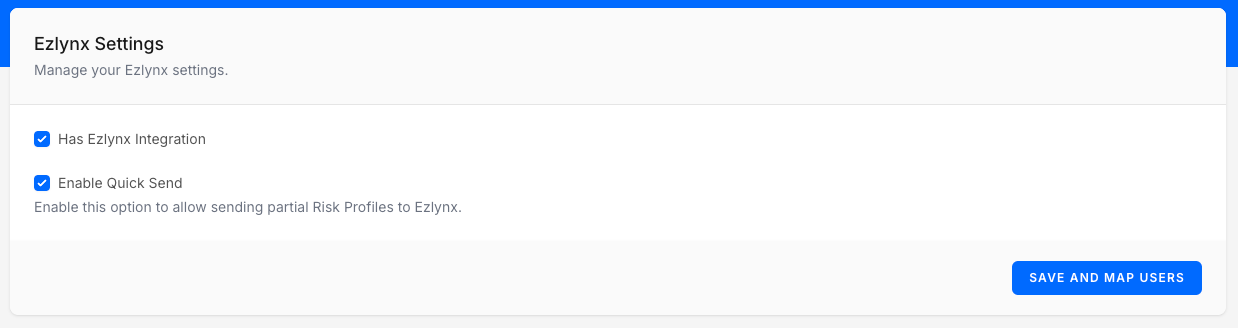
Go to Settings → Integrations.
Find the EZLynx Integration.
Check the box for Enable QuickSend.
Click Save & Map Users.
How To Use QuickSend
Start a New RiskProfile.
Enter the required fields for EZLynx:
First Name
Last Name
Email or Phone Number
Line of Business: Auto or Home
Click QuickSend.
Select Send to EZLynx.
You will see a confirmation that the data was sent successfully.

What Happens Next
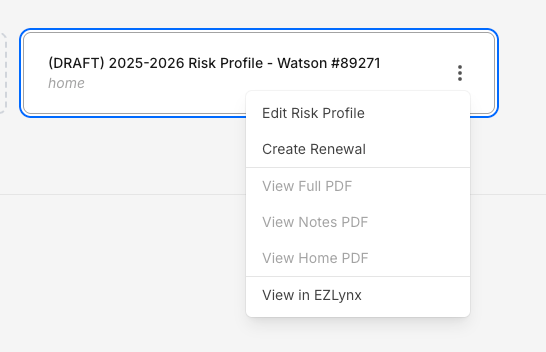
The client remains as a draft RiskProfile in RiskAdvisor.
A linked EZLynx client/applicant profile is created.
From the Client Profile, click View in EZLynx to jump directly into the applicant and quote.
QuickSend for EZLynx FAQs
Q: Who can turn QuickSend on?
Q: Who can turn QuickSend on?
Only admins and account owners.
Q: Do I still need to complete the full Risk Profile later?
Q: Do I still need to complete the full Risk Profile later?
No, but it’s very easy to do so if you want or need to.
Q: What if I don’t see QuickSend?
Q: What if I don’t see QuickSend?
Check that the EZLynx integration is enabled in Settings → Integrations → EZLynx Integration and that you’ve saved the change.
Sync an existing contact from EZLynx
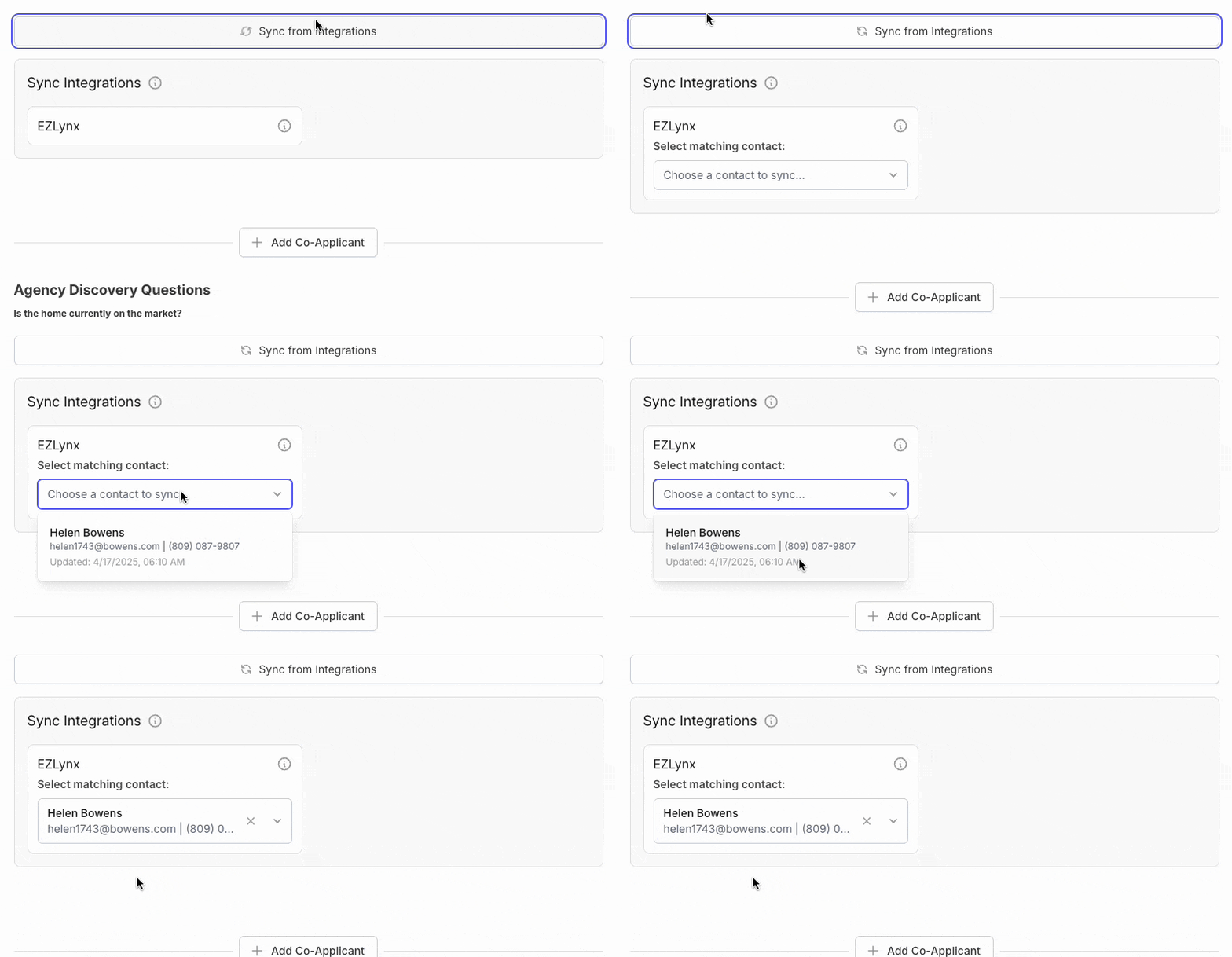
If a prospect or customer already exists in EZLynx, you can match and link them directly from within a RiskProfile. This prevents duplicate records and fixes sync errors caused by deleted or merged applicants.
How To Do It
Use this when the contact already exists in EZLynx and you want to link their RiskAdvisor profile.
Start a new RiskProfile or open an existing one
Click "Sync from Integrations" You will see this section if EZLynx is enabled on your account.
Select Matching Contact Click Select Matching Contact under EZLynx. RiskAdvisor searches EZLynx using email, phone number, and name.
Review the results Each result shows the contact's full name, email, phone number, and last updated date.
Choose the correct applicant Selecting a result creates a one-to-one link between the RiskAdvisor client and the EZLynx record. No new EZLynx applicant is created.
What RiskAdvisor sends to EZLynx
The exact fields sent depend on the line of business, the data available in the RiskProfile, and state-specific carrier requirements.
Common applicant data
Common applicant data
Common applicant data
For both home and auto flows, RiskAdvisor can send:
First name
Middle initial
Last name
Suffix
Date of birth
SSN
Gender
Marital status
Relationship to insured
Occupation
Industry
Education
Email
Phone number
Preferred contact method
If a co-applicant exists, the same core applicant details can also be sent for the co-applicant.
Address data
Address data
RiskAdvisor can send the current address, including:
Street address
Address line 2
City
County
State
ZIP code
If the insured recently moved, RiskAdvisor can also send a previous address when that information is available.
Prior policy and coverage history
Prior policy and coverage history
Depending on line of business and available data, RiskAdvisor can send:
Prior carrier
Prior policy expiration date
Years with prior carrier
Years with continuous coverage
Reason for no prior coverage
Prior premium
Prior liability limits
Policy-level data
Policy-level data
RiskAdvisor can also send policy metadata such as:
Effective date
Policy term
Requested policy form for home
Package / bundle preference
Credit check authorization where supported
Auto fields sent to EZLynx
For auto quoting, RiskAdvisor can send:
Driver data
Driver data
First name
Last name
Gender
Date of birth
Occupation
Industry
Marital status
Relationship
Driver's license number
Driver's license state
Driver's license status
Age first licensed
Rated / excluded / non-rated status
SR-22 requirement
Good student discount
Driver training discount
Vehicle data
Vehicle data
Year
VIN
Make
Model
Purchase date
Vehicle use and assignment data
Vehicle use and assignment data
Usage
Ownership / finance status
Delivery-use flag
Annual miles
Odometer in supported states
One-way commute miles
Days per week used
Weeks per month used
Assigned driver
Auto coverage data
Auto coverage data
Bodily injury limits
Property damage limits
Uninsured motorist
Underinsured motorist
Medical payments
Multi-policy discount
Retirement community flag
AAA discount
Multi-car flag
Per-vehicle coverage data
Per-vehicle coverage data
Comprehensive deductible
Collision deductible
Full glass
Towing coverage
Rental reimbursement
Stated amount
Waiver of collision damage in supported states
Home fields sent to EZLynx
For home quoting, RiskAdvisor can send:
Property details
Property details
Year built
Square footage
Number of stories
Number of occupants
Residence type
Dwelling use
Occupancy
Construction type
Roof type
Roof shape or roof design, depending on state
Foundation type
Heating type
Whether there is a wood-burning stove
Whether roof, electrical, plumbing, or heating systems have been updated
Distance to fire station
Distance to fire hydrant
Distance to tidal water
Protection class
Purchase date
Under-construction status
Construction style
Garage / carport type
Number of car spaces
Detached structures
Wind-related details where applicable
Liability and property risk details
Liability and property risk details
Swimming pool
Pool type
Pool fencing
Trampoline
Dog on premises
Dog breed information
Number of dogs
Dog bite history
Number of full baths
Number of half baths
Home-based business indicator
Mortgage indicator
Home coverage data
Home coverage data
Dwelling coverage
Other structures coverage
Loss of use coverage
Personal property coverage
Personal liability
Medical payments
All other peril deductible
Wind / hail / hurricane deductible
Multi-policy credit
Other rating credits where applicable
State-specific behavior
Some EZLynx fields are only sent in certain states. Examples include:
Florida-only coverage and wind-related fields
California-only vehicle fields such as odometer and waiver of collision damage
New York, Texas, Massachusetts, Michigan, and other state-specific coverage options
Because EZLynx's schema varies by state and product, the final payload may differ from one RiskProfile to another.
Existing Contact Sync FAQs
What if the person doesn't appear in the match list?
What if the person doesn't appear in the match list?
Double-check that their email, phone number, or name matches what’s in EZLynx.
If the name, email and/or phone number are correct and they do not appear in the dropdown please let us know.
Will this create a new applicant in EZLynx?
Will this create a new applicant in EZLynx?
Nope! This allows you to create a link between existing EZLynx prospects/customers to avoid duplicate creation.
Does this work for both prospects and customers?
Does this work for both prospects and customers?
Yes, that’s correct!
Was this helpful?
Still need help? Ask the team