Customize Your RiskProfile Form
You can now customize your RiskProfile form to better match your agency’s workflow. This article explains exactly what you can customize and the rules that keep everything working correctly.
Written By Sarah Husbands
Last updated 5 months ago
Use this guide to understand how the RiskProfile Form Builder works — what it is, how it's structured, and what your team can control.
This applies specifically to RiskProfiles. The QuoteForm form builder is under development and will be released soon. You can follow along here: QuoteForms Customization v1
Summary: The RiskProfile Form Builder lets agency owners and admins customize the intake form your team uses to collect risk data from clients. You can rename questions, show or hide fields, set defaults, add custom questions, and control how questions appear based on state or prior answers.
How the form is structured
Every RiskProfile form is built in four levels:
Form — the full RiskProfile (Home, Auto, Umbrella, etc.)
Sections — smaller groupings within a page, such as "Discounts" or "Exposures"
Fields — the individual questions, like "Do you have any animals?"
When you customize the form, you're working at the field level — adjusting questions within their existing page and section structure.
What You Can Customize
Access the Form Builder via Settings → Form Settings. For each question on the form, you can adjust:
Visibility – Use the Visible toggle to show or hide the question
Required – Use the Required toggle to make the question mandatory
Label – Rename the question as it appears to agents filling out the form
Default value – Pre-fill the field with a set answer
Order – Drag questions to reorder them within a section
Delete custom questions – If your team created a custom question in Form Settings, you can remove it from the form using the delete option on that question row
Changes apply immediately to new RiskProfile submissions once saved. Previously completed profiles are not affected.
Labels
Tailor the intake questions to change how the question appears on the RiskProfile.
You can rename questions directly in the Label field.
Label updates change how the question appears on the Risk Profile
Underlying data and integrations are not affected
💡 Tip: Renaming a label (e.g., changing "Spouse" to "Partner") only affects how the question looks on screen. The underlying data field and all integration mappings are unaffected.
Custom Labels in Validation Errors
When a required field is left blank, the validation error message now uses the label your team has set in Form Settings — not the system default.
For example, if your team renamed the Home insurance field Year Built to Year Home Was Constructed:
Before: "The Year Built field is required when Home Insurance is present."
After: "The Year Home Was Constructed field is required when Home Insurance is present."
This applies to all fields on Home, Auto, and Umbrella Risk Profile forms where a custom label has been set — including team-specific label overrides. No configuration is required; validation messages update automatically.
Field types available
When adding a custom question, you can choose from 11 field types:
Text — open-ended, short response
Number — numeric input only
Email — email address format
Phone — phone number format
Dropdown — pick one option from a list
Money — currency input
Date — date picker
Yes / No — boolean toggle
Textarea — longer open-ended response
Checkbox — single checkbox (true/false)
Percent — numeric percentage input
⚠️ Warning: Once a custom field is created, you cannot change its type. A Text field cannot be converted to a Dropdown later. Plan your field type before saving.
Adding custom questions
If your account has custom questions enabled, owners and admins can add new fields that don't exist in the default form.
Navigate to Settings → Form Settings.
Select the section where you want to add the question.
Click Add Question.
Choose a field type (see the list above).
Enter the label and configure visibility, required status, and any default value.
Click Save — the question goes live immediately.
Deleting custom questions
If your team created a custom question, you can remove it from the form at any time from Settings → Form Settings.
Only team-created custom questions can be deleted. Built-in system questions and questions created by other teams cannot be removed.
The delete option appears on eligible question rows in Form Settings.
Clicking delete opens a confirmation modal before the question is removed.
Once confirmed, the question is removed from the form immediately.
Important: Deleting a question removes it from future use in the form. Previously completed RiskProfiles and any PDFs generated before deletion are not affected.
Visibility & Required Rules
To prevent broken forms and integration issues, a few rules are enforced.
1. Required Questions Must Be Visible
Turning Required on automatically requires the question to be Visible
If a required question is hidden, you'll be blocked from saving
2. Integration-Required Questions
Some questions are required by third‑party integrations (such as AgencyZoom or EZLynx).
These questions have toggles that appear greyed out in the list
Greyed out Visible and Required toggles are disabled
Hover over the question to see which integration requires it
These rules ensure required data continues to sync correctly to integration partners.
Hiding a field also removes it from UnderwritingAI evaluation. If your team turns a field off in Form Settings, that field won't be used to trigger underwriting indicators until it is visible again.
Parent & Child Questions (Sub‑Questions)
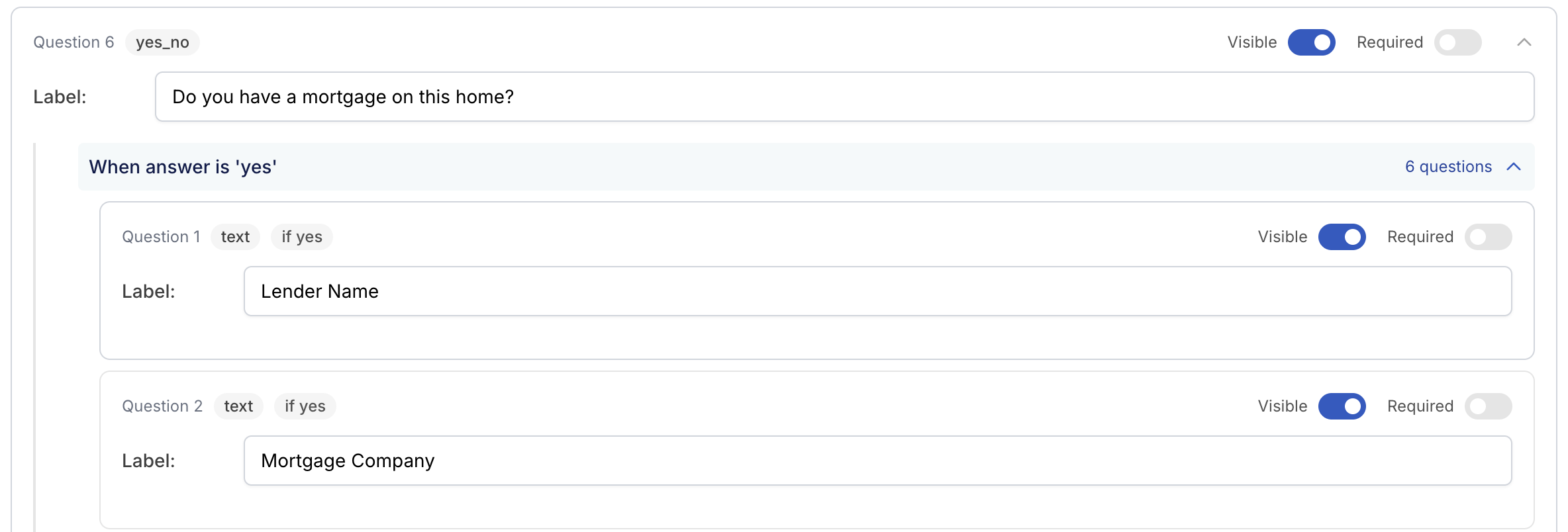
Questions with a dropdown arrow include sub‑questions.
How it Works
Click the dropdown arrow on the right to view child questions
Child questions depend on the answers from parent question
If a parent question is hidden, all child questions must also be hidden
A child question can be Required even if the parent is not
You may be prevented from saving changes if a parent is hidden while a child remains visible
This keeps forms clear and prevents invalid configurations.
Repeating question groups
Some lines of business require collecting the same set of information multiple times — for example, three drivers each with their own name, date of birth, and license number.
These are handled as repeater groups — a set of questions that the client or agent can fill in once and repeat as needed. Common examples include:
Additional drivers (Auto)
Additional vehicles (Auto)
Additional properties
Saving Changes
If a change breaks one of the rules above, you may be prompted to fix it before saving. This helps prevent:
Broken Risk Profiles
Missing integration data
Be sure to save your changes using the Save button before navigating off the page.
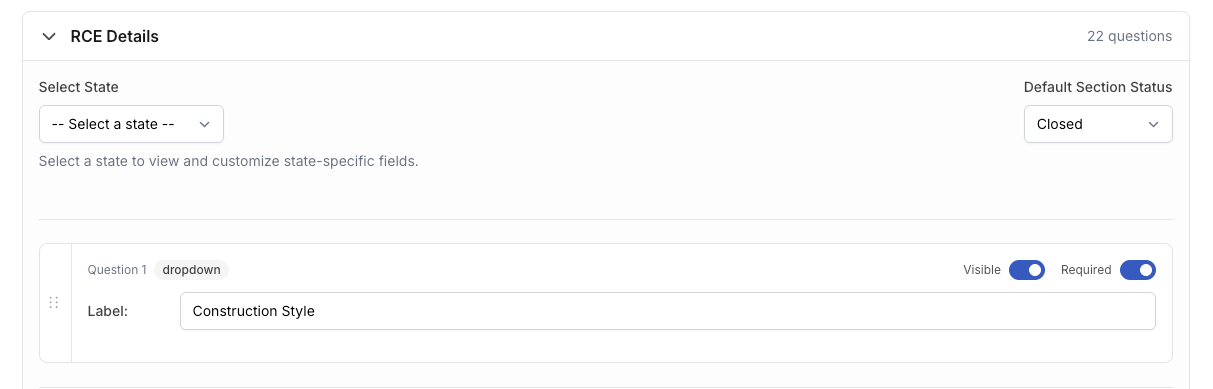
Set the default RCE Details section status
You can choose whether the RCE Details section starts open or closed when someone opens a Home RiskProfile.
This setting helps your team match the form experience to your preferred workflow. For example, if your team reviews RCE details on most submissions, you may want the section to start Open. If you only check it when needed, you may prefer Closed.
How to update the setting
Open Settings.
Click Form Settings.
Go to Home → RCE Details.
Find Default Section Status.
Select Open or Closed.
Click Save.