Submission Protection in QuoteForms
Written By David Watson
Last updated 5 months ago
This article explains the tools available to help reduce spam and bot submissions in QuoteForms. It’s intended for agency admins who manage public or embedded QuoteForms.
Overview
RiskAdvisor includes multiple layers of protection to help reduce unwanted or low-quality QuoteForm submissions. Depending on how your form is shared, you can use one or all of these options together:
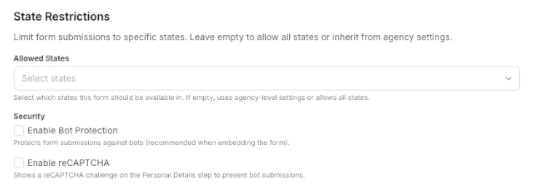
Allowed States limits who can continue based on the state they select
Enable Bot Protection adds an extra layer of protection, especially for embedded forms
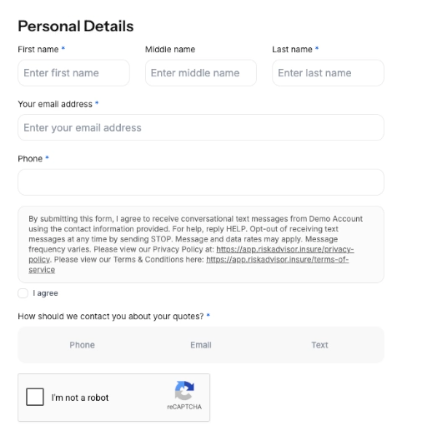
Enable reCAPTCHA requires the prospect to complete a challenge before moving past the Personal Details step
Submission rate limits help prevent repeated submissions from the same internet connection
For the strongest protection, use these settings together on any public-facing QuoteForm.
Before you begin
To review your QuoteForm protection settings:
Go to QuoteForms
Open the QuoteForm you want to update
Scroll to State Restrictions and Security
Make your changes
Click Edit QuoteForm to save
Option 1: Limit submissions with Allowed States
Use Allowed States when your agency only writes business in specific states.
In State Restrictions, open Allowed States
Select the states your agency serves
Save the QuoteForm
When a prospect selects a state outside your allowed list, they will be told that coverage is not offered in that state and will not be able to continue.
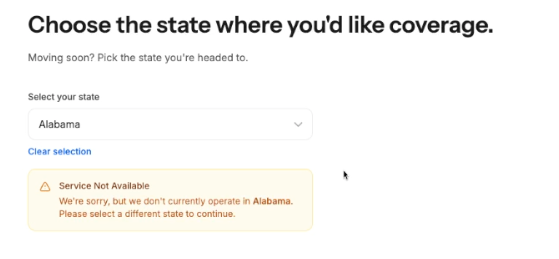
💡 Tip: Allowed States is one of the simplest ways to cut down on out-of-area submissions before a prospect gets deeper into the form.
Option 2: Turn on Bot Protection
Use Enable Bot Protection to add an extra layer of protection against automated submissions.
In Security, turn on Enable Bot Protection
Save the QuoteForm
This setting is especially helpful if your QuoteForm is embedded on your website.
💡 Tip: If your form is publicly embedded, Bot Protection should usually be turned on.
Option 3: Turn on reCAPTCHA
Use Enable reCAPTCHA when you want prospects to complete a challenge before they can continue in the form.
In Security, turn on Enable reCAPTCHA
Save the QuoteForm
Open the public QuoteForm to test it
When enabled, the reCAPTCHA widget appears on the Personal Details step. The prospect must complete the challenge before selecting Next Step.
If they try to continue without completing it, they will see a message asking them to complete the reCAPTCHA challenge first.
📝 Note: reCAPTCHA is especially useful for forms shared publicly or embedded on a website.
Option 4: Understand submission rate limits
RiskAdvisor also applies submission rate limits to help prevent repeated spam submissions.
Here’s what to know:
A form can only be submitted a limited number of times per hour from the same internet connection
This protection applies to both draft and final submissions
If the limit is reached, the prospect will need to wait before submitting again
Rate limits work in the background and do not require setup in the QuoteForm editor.
Recommended setup for public QuoteForms
For the strongest protection on a public-facing QuoteForm, RiskAdvisor recommends:
Setting Allowed States
Turning on Enable Bot Protection
Turning on Enable reCAPTCHA
This is especially important for QuoteForms embedded on your website, shared in ads, or posted on social media.
Troubleshooting
reCAPTCHA does not appear
Check these first:
Enable reCAPTCHA is turned on
You saved the QuoteForm after making the change
You are testing the correct public form link or embedded form
A prospect cannot continue past Personal Details
If reCAPTCHA is enabled, the prospect must complete the challenge before selecting Next Step.
A prospect is blocked after selecting their state
Review your Allowed States list and make sure the selected state is one your agency serves.
A prospect says they cannot submit after trying multiple times
They may have reached the submission rate limit. Ask them to wait and try again later.
Best practices
Use Allowed States for every QuoteForm that should only accept business in certain states
Turn on Bot Protection for embedded forms
Turn on reCAPTCHA for publicly shared forms
Test the live form after saving your changes
Review your settings any time a QuoteForm is reused for a new campaign or traffic source
Check out How to create a new QuoteForm and Sharing your QuoteForms for additional helpful tips!
Was this helpful?
Still need help? Ask the team