What clients see on a Custom QuoteForm
A page-by-page look at the Custom QuoteForm your clients fill out, from contact details to the Thank You page.
Written By David Watson
Last updated About 2 hours ago
Custom QuoteForms guide clients through short pages, one topic at a time. Here is what a client sees from start to finish.
How the form is laid out
Each page covers one topic, so clients never face a long wall of questions.
Pages are sized for phones. On most phones, clients scroll very little on each page.
The form works the same on desktop, tablet, and mobile.
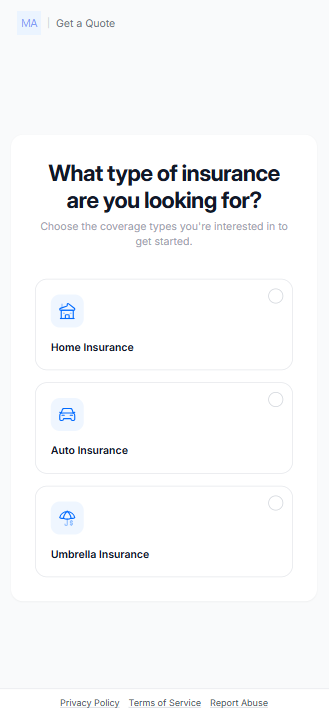
Clients pick the lines of business they want quoted from the lines your form offers.
Clients see only the questions you turned on in the builder.
Required questions
Clients cannot move to the next page until they answer every required question on the current page. Required questions are clearly marked.
This means clients find a missed question right away. They do not reach the end of the form and then have to search for it.
Contact details and address
Email is always required. RiskAdvisor uses it to match the client and create their RiskProfile.
Address lookup suggests addresses as the client types. Clients can also enter their address by hand.
Referred by a team member lets the client pick someone on your team from a list, if you turned this question on.
Follow-up questions
Some questions appear only when an earlier answer calls for them. For example, when a client says a home is a new purchase, they are asked for the closing date. When they say it is not, they are asked for the purchase date.
The form can also ask for the address of the client's prior home.
Drivers
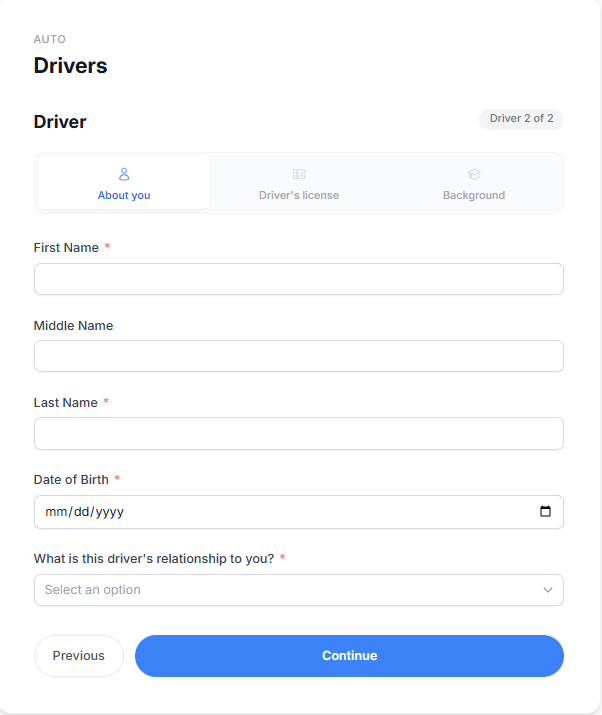
For auto, the form walks the client through the driver questions once for each driver. They finish one driver before starting the next.
Final Details
The last page holds the optional questions you turned on, such as:
How did you hear about us?
Anything else you would like us to know?
What is the best time to reach you?
Thank You page
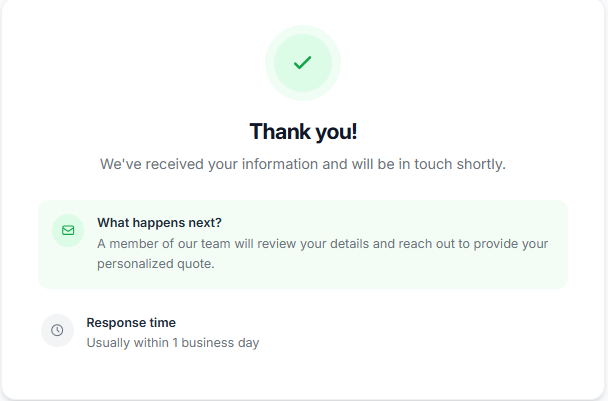
After submitting, the client sees your Thank You page. It shows the message, the next steps, and the response time you set in the form's settings.
Tip: Fill out your own form on your phone before you share it. You will see exactly what your clients see.
Related Articles
Was this helpful?
Still need help? Ask the team